







External business events in Business Central let your application expose meaningful business activities, such as a project manager being assigned to a job, to connected applications. Developers define the event in AL using the ExternalBusinessEvent attribute and raise it explicitly when the business condition is met. Supported integrations, including Power Automate, can then start workflows in near real time, without repeatedly polling Business Central for changes.
Business Central rarely works alone. Project delivery, finance, service and sales teams depend on other tools that need to know when something changes. This guide walks through a practical implementation example, a project manager assignment on a job, and finishes with the design practices that keep event-driven integrations maintainable.
What Are External Business Events in Business Central?
An external business event is a named notification that represents something meaningful in a business process. Typical examples include:
- A project manager is assigned to a job
- A sales order is posted
- A customer is approved
- A document reaches a particular status
The pattern has four steps. A business action occurs, Business Central publishes the event, an external system receives it, and an automation or integration begins. Business Central only reports what happened. What should happen next is decided on the receiving side.
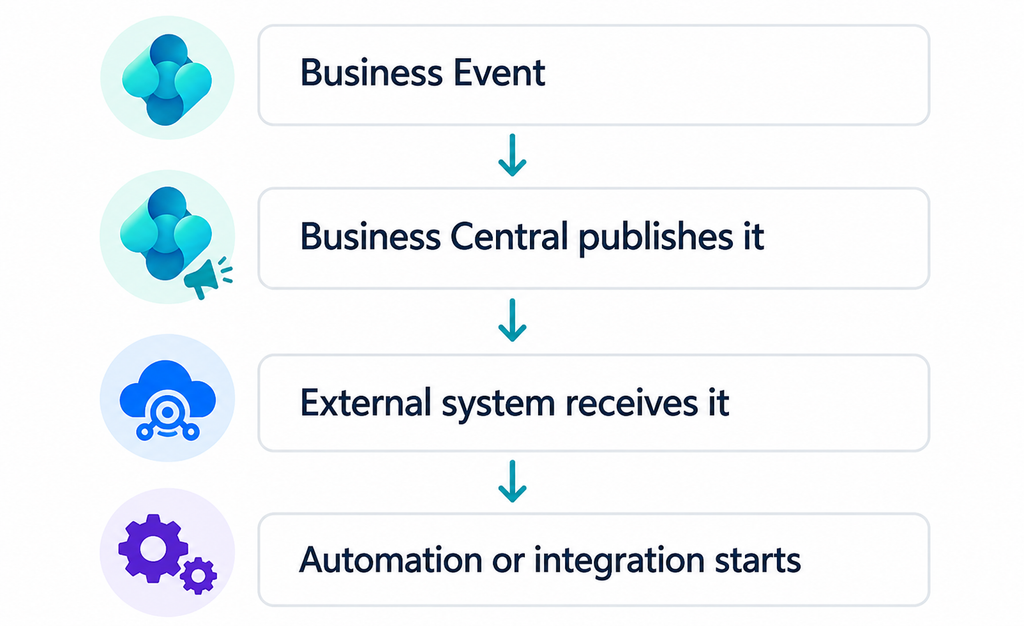
The event-driven pattern, from business action to downstream automation.
External business events are not a feed of every database or field change. Developers choose the business condition that matters and raise the event explicitly in AL. That is what keeps the signal meaningful for the systems that consume it.
Why Use External Business Events Instead of Polling?
External business events let Business Central announce a change when it happens, whereas polling asks repeatedly whether anything has changed. Both approaches work, but they differ in timing, load and maintenance.
| Polling | External business events | |
| Timing | Delayed until the next scheduled check | Near real time, after the transaction commits |
| Load on Business Central | Repeated queries, even when nothing changed | Activity only when the event is raised |
| Logic ownership | The external system works out what changed | Business Central states what happened |
| Maintenance | Schedules and filters to manage | A named event with a defined payload |
The practical gain is separation of concerns. Your AL code does not need to know what the external system will do with the event, so adding a new reaction later does not mean changing the extension.
How to Create Custom External Business Events in Business Central
Creating a custom event takes four steps: choose a business moment, declare the event, give it a category, and raise it from an AL event subscriber. You need an AL extension project in Visual Studio Code and a sandbox environment for testing. Our example notifies an external system whenever a project manager is assigned to a job.
Step 1: Identify the business moment
In Business Central, the assignment happens in the Project Manager field on the Project Card. That field change is our trigger point.
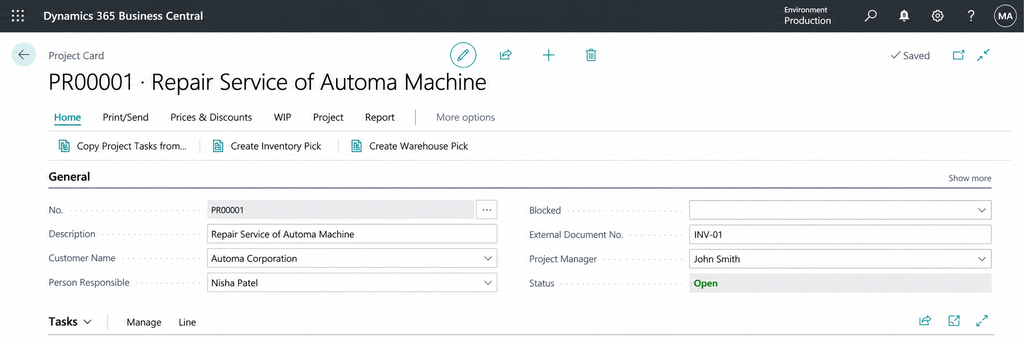
The Project Manager field on the Project Card.
Step 2: Declare the event with the ExternalBusinessEvent attribute
The ExternalBusinessEvent attribute marks a procedure as an event that external applications can subscribe to. The procedure body stays empty. Its parameters define the event payload. The attribute takes a name, a display name, a description and a category.
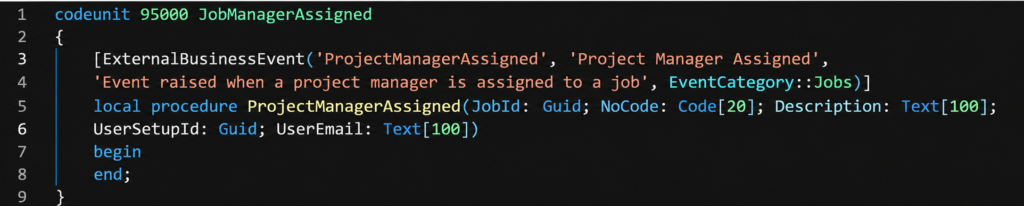
The ProjectManagerAssigned event declaration in AL.
The payload carries the job’s system ID, number and description, plus the user’s system ID and email. Microsoft limits event parameters to simple types such as Guid, Code, Text, Integer, Decimal, Boolean and Date, so identifiers like system IDs are a practical way to let a receiver look up fuller records later.
Step 3: Add a custom event category
Each event belongs to a category. Because EventCategory is an extensible enum, you can add your own value. We added a Jobs category.
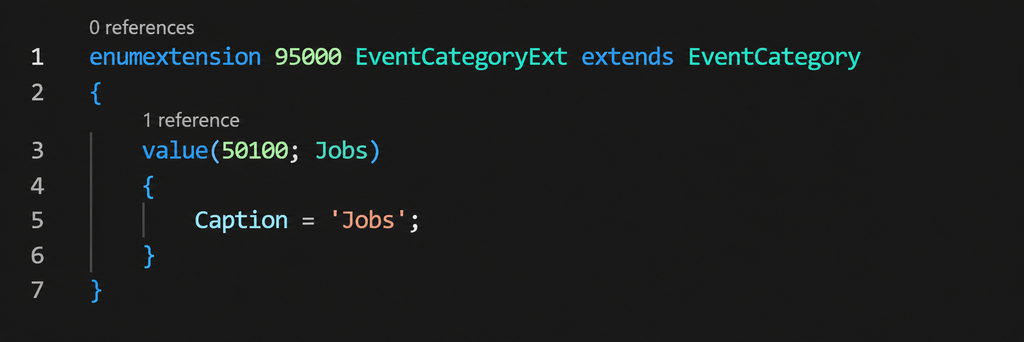
An enum extension adds the Jobs category.
Use an object ID and value ID from your own allocated ranges so they do not conflict with other extensions.
Step 4: Raise the event from an AL event subscriber
Declaring an event does not publish it. You raise it by calling the event procedure from an event subscriber at the right moment. Here, a subscriber on the Job table listens for validation of the Project Manager field.
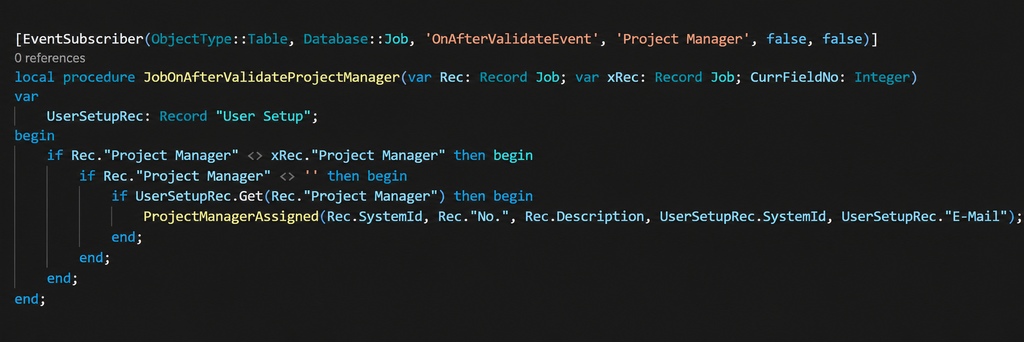
The event subscriber raises the event when the Project Manager changes.
The conditions define when the business event exists:
- Value comparison. Comparing Rec with xRec means the event is raised only when the project manager actually changes.
- Empty check. Clearing the field is not an assignment, so nothing is raised.
- User Setup lookup. The subscriber retrieves the matching User Setup record so the payload includes the user’s ID and email. A User Setup record can exist without a populated or deliverable email address, so validate the address in the consumer if your process requires it.
This is an implementation example. Before using it in your own environment, test it in a sandbox against your Business Central version, including edge cases such as a re-entered value, a cleared field and a user without an email.
Integrating Custom Business Events with Power Automate
Power Automate consumes a custom event through the Business Central connector trigger “When a business event occurs (V3)”. The event payload becomes available to the flow, which then runs whatever steps your process needs. In our example, the flow uses identifiers from the event to retrieve related records before notifying the project manager:
- When a business event occurs (V3)
- Get User Setup
- Get Projects
- Send an email (V2)
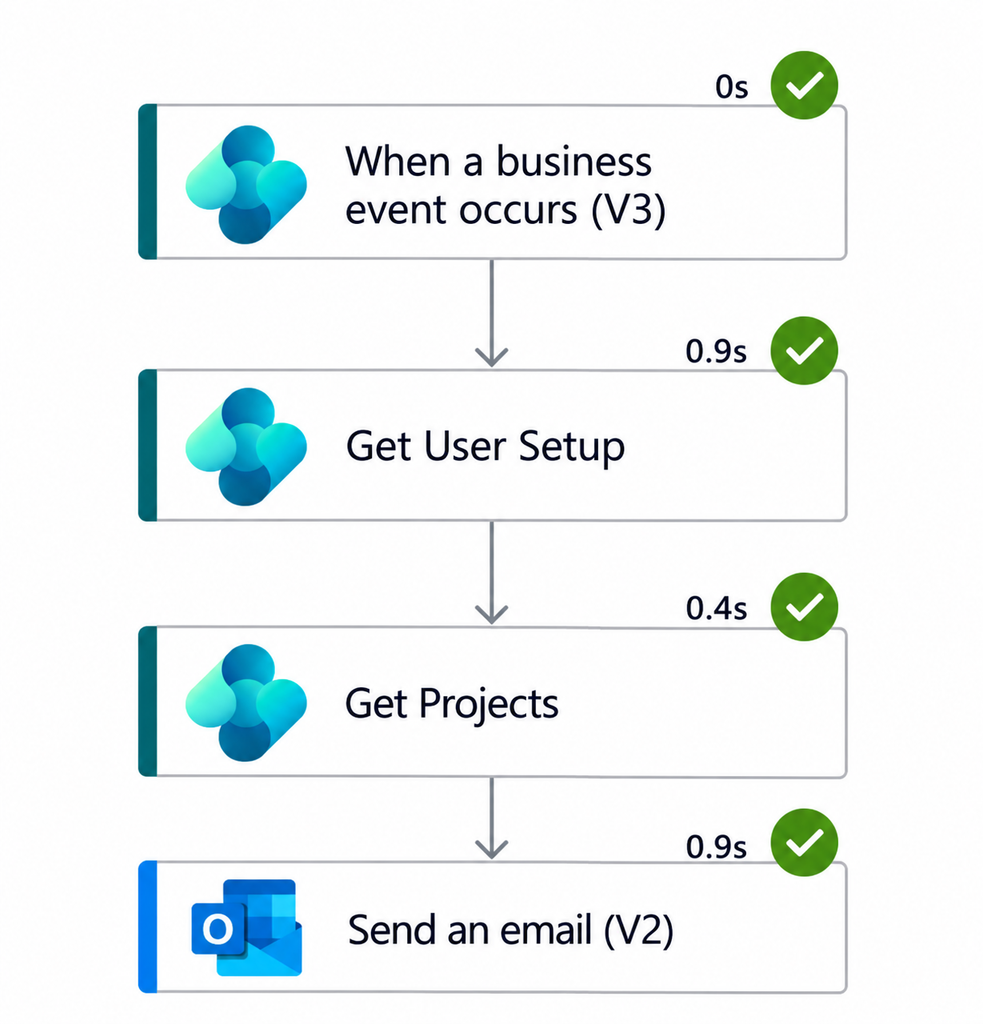
A Power Automate flow triggered by the ProjectManagerAssigned event.
Extending External Business Events to Other Workflows
Because the event describes a business fact rather than a fixed action, several consumers can react to the same event. Depending on your process, a consumer could send an email, post a Teams notification, create a task, start another flow or update a separate application.
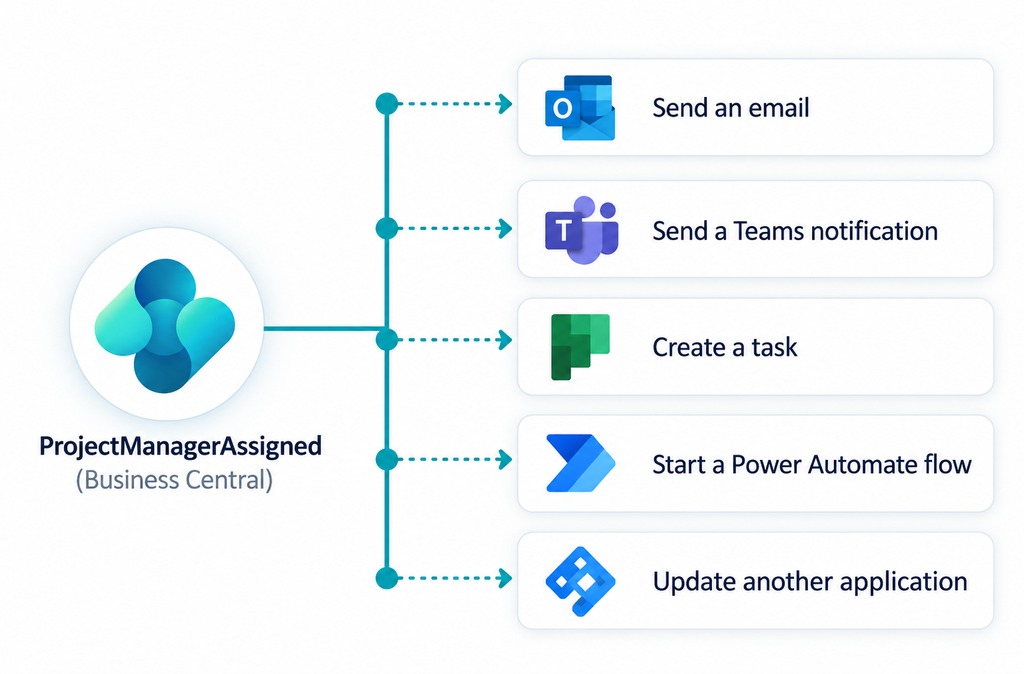
One event, several possible reactions.
Best Practices for External Business Events
Name events after business meaning
ProjectManagerAssigned tells every consumer what happened. JobProjectManagerFieldUpdated describes a technical detail and makes consumers guess the intent.
Treat each event as an integration contract
Once an external application depends on an event, its name, payload and meaning are a commitment. Microsoft’s overview has noted that versioning of business events is not supported, so avoid reshaping live events. Prefer adding a new event, and retire the old one deliberately once consumers have moved.
Raise events for business moments, not field edits
Add conditions, as the subscriber above does, so each event reflects a real change. Noisy events create unnecessary flow runs and make failures harder to trace.
Keep the payload lean
Include stable identifiers and the few values most receivers need. If an event exposes sensitive data, the optional RequiredPermissions attribute can enforce extra permissions for subscribers.
Plan for delays, failures and duplicates
Notifications are sent only after the current transaction commits, and never if it rolls back, so long-running transactions delay delivery. Actual timing also depends on the connector, the receiving application and service conditions, so design for near real time rather than instant delivery. On the consuming side:
- Add error handling to flow actions and review failed runs regularly.
- Monitor flow runs so a failed email or update does not go unnoticed.
- Build consumers to be idempotent where it matters, so processing the same event twice does not create duplicate tasks or messages.
- Keep business logic out of the AL subscriber. Its job is to say what happened, not what to do about it.
Final Thoughts
External business events give Business Central a clean way to talk to the rest of your application landscape. Define a meaningful business event, raise it through AL under clear conditions, and connect it to Power Automate or another consumer. The result is a separation between what happened and what should happen next, and integrations that are easier to maintain and extend.